How to automate WhatsApp notifications for your business
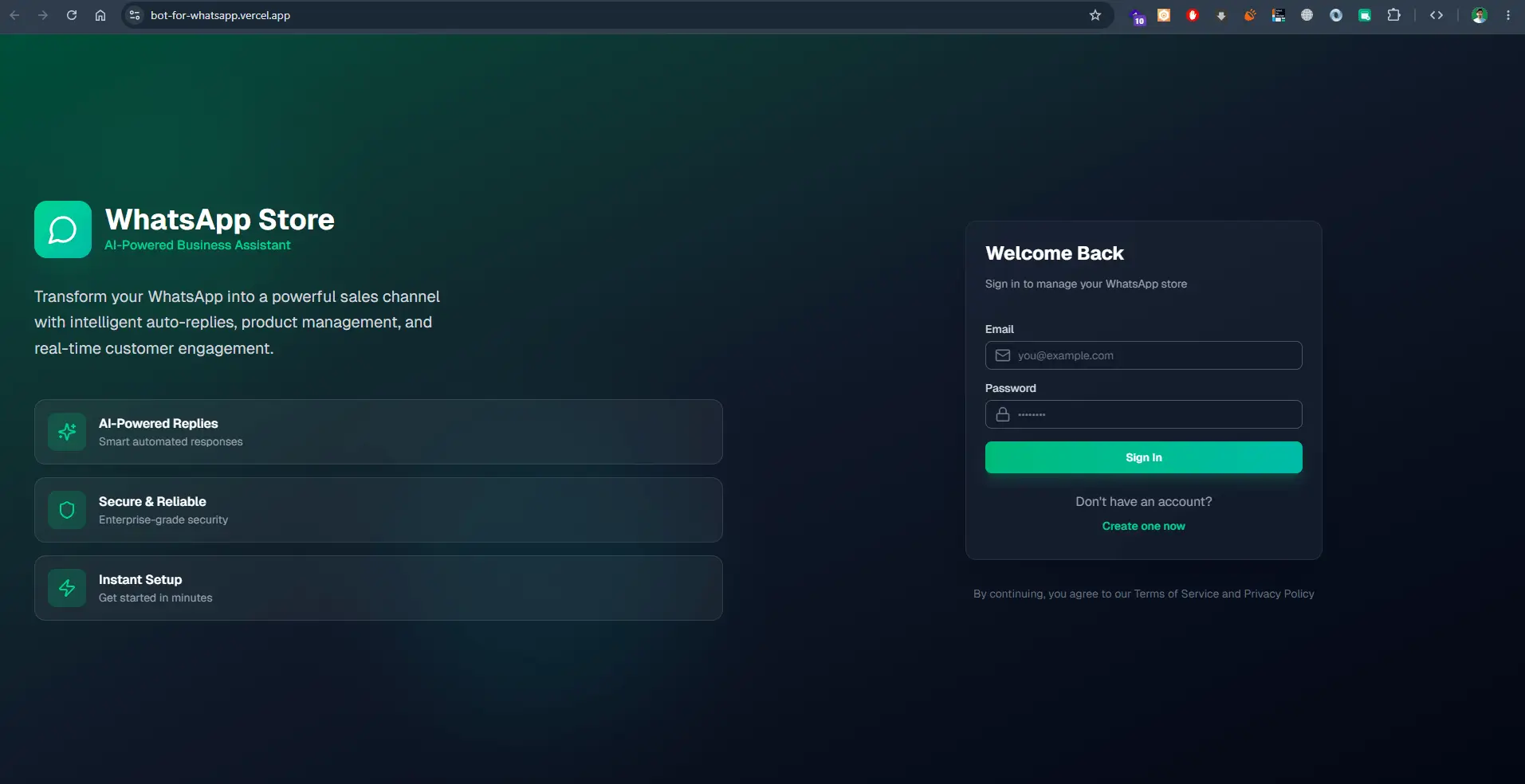
The reliable way to automate WhatsApp notifications is the official WhatsApp Business Platform, using the Cloud API hosted by Meta. Your system sends messages through the API using templates that Meta has approved, to customers who have agreed to receive them. Done properly, this gives you order updates, reminders and alerts that customers actually read, without the risk of your number being blocked. This article explains how it works and where to start.
Key takeaways
- Use the official WhatsApp Cloud API, not unofficial tools that automate the WhatsApp app, which risk your number being banned.
- Business-initiated messages must use templates approved by Meta; free-form replies are allowed within the customer service window.
- Collect clear opt-in before messaging customers, and make it easy for them to stop.
- Start with high-value transactional messages such as confirmations and reminders before considering marketing.
Official API versus unofficial tools
There are many tools that promise WhatsApp automation by controlling a normal WhatsApp or WhatsApp Business app through a browser session. They are tempting because they seem quick to set up, but they break Meta's terms, stop working when WhatsApp changes, and can get your number blocked, sometimes permanently.
The WhatsApp Business Platform is Meta's official route for businesses sending messages from their own systems. The Cloud API is hosted by Meta, so there is no server for WhatsApp itself to maintain; your application simply calls the API. You can connect to it directly or through an official Business Solution Provider. Meta charges for certain conversations, so check its current pricing for your country and message types before you plan volumes.
What you need to get started
Setting up the Cloud API is mostly administrative work, and it is worth starting early because verification can take time.
- A Meta Business account, ideally verified with your company details.
- A phone number for WhatsApp messaging that is not already registered on the regular WhatsApp app.
- A WhatsApp Business Account and app configured in Meta's developer tools.
- A display name and business profile that follow Meta's guidelines.
- A backend, such as your existing web app or a small service, that calls the API and receives webhooks.
Message templates and the customer service window
WhatsApp separates messages your business starts from conversations the customer starts. To start a conversation, for example to send an order confirmation or appointment reminder, you must use a message template that Meta has reviewed and approved. Templates have fixed text with placeholders for details such as a name, order number or time, and can include buttons.
When a customer messages you, a customer service window opens during which you can reply with free-form messages. This is where support conversations and chatbots operate. Templates are categorised, broadly as utility, authentication or marketing, and the category affects review and pricing. Write templates that are clear, specific and genuinely useful; vague or promotional wording in a utility template is a common reason for rejection.
Opt-in: getting permission properly
Meta requires that customers agree to receive WhatsApp messages from you, and it is good practice regardless. Ask for opt-in at a natural moment: a checkbox at checkout, a choice during booking or a setting in the customer's account. Explain what kind of messages they will receive, store the consent with a timestamp and respect opt-outs immediately.
Customers who did not expect your messages will block or report you, which affects your quality rating and can limit how many messages you can send. Relevant, expected messages keep the rating healthy.
It also helps to think about frequency. A confirmation and a single reminder before an appointment are welcome; several messages a day about the same order are not. Send fewer, better-timed messages and customers will keep reading them.
Use cases that work well
The best candidates are messages customers want to receive at a specific moment, triggered by an event in your system.
- Order confirmations, dispatch and delivery updates for online stores.
- Appointment and booking confirmations, reminders and reschedule links for clinics, salons and service businesses.
- Payment receipts, invoice reminders and failed payment alerts.
- One-time passcodes for sign-in or verification.
- Status updates for support tickets, repairs, applications or deliveries.
- Internal alerts to staff, such as a new lead, a large order or a stock threshold.
How the integration works in practice
In a typical setup, your application already knows when something happens: an order is placed, a booking is made, a payment fails. At that moment it calls the Cloud API with the chosen template and the details to fill in. Meta then sends webhooks back to your system with delivery and read statuses, and with any replies from the customer.
A few details make the difference between a fragile integration and a dependable one: queue messages so a temporary API error does not lose them, log every message and status, handle template variables safely, respect customers' language preferences, and route replies to a person or a chatbot rather than letting them disappear. Once this foundation works, adding an AI assistant to handle common replies is a natural next step.
Questions readers ask
Can I keep using my existing WhatsApp number?
Often yes, but the number must be moved to the Business Platform, after which it can no longer be used in the regular WhatsApp app at the same time. Many businesses use a dedicated number for automated messages instead.
Can I send marketing messages through the API?
Yes, using approved marketing templates and only to customers who have opted in. Start with transactional messages first; they build trust and keep your quality rating healthy.